
Here’s what you can find and do in the dashboard:
Create a new VTB
Start a new travel proposal from scratch.
Duplicate a VTB
Quickly copy an existing proposal to create a new variation. This saves time when working with similar trips or templates.

Delete a VTB
Remove outdated or unwanted proposals to keep your dashboard clean and organized.

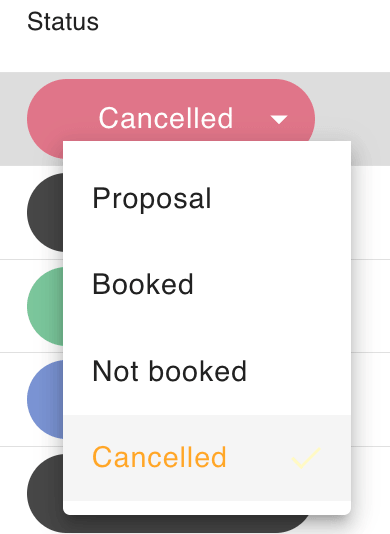
Manage VTB Statuses
Assign a status to each proposal to track its progress. The available statuses are:
– Proposal: Draft or in-progress
– Booked: Confirmed by the customer
– Not Booked: Declined or inactive
– Cancelled: No longer relevant
Edit VTB Title
Change the title of any VTB to make it easier to recognize and manage.

Internal Notes
Next to the ‘Open VTB’ option, you’ll see a small notepad icon. You can use this for internal notes such as supplier information or reminders. These notes are only visible internally and will not appear in the final output shared with the customer.
Note: notes created directly from the dashboard are visible immediately. However, if you create a note within steps 1-4 of a VTB, the note will only become visible in the dashboard after refreshing the page.

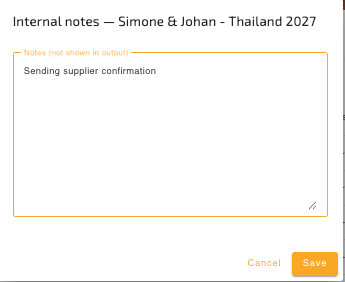
You can also find the icon next to the Knowledge Base button.

View VTB ID and last updated date
Each VTB has a unique ID and a timestamp showing the last modification. Useful for version control and reference.

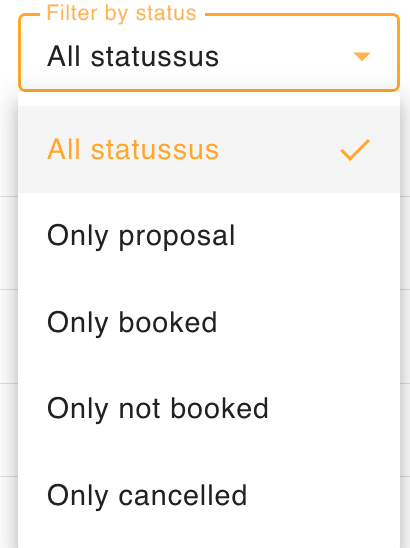
Filter by Status
Narrow down your view to show only proposals with a specific status, for example, all Booked proposals.
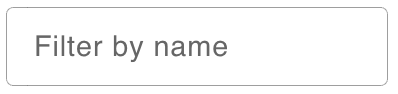
Filter by name
Quickly search for a proposal by its title to find it faster.
Pagination (20 VTBs per page)
The dashboard displays 20 VTBs per page. Use the pagination controls to navigate through your full list of proposals.
