
The TravelDocs allows you to convert a travel proposal into a complete set of travel documents once a trip is booked. This feature is offered as a paid add on. If it is not enabled for your account, the TravelDocs options will not be visible in your VTB.
What type of documents?
– Digital TravelDocs overview (no sensitive data)
– PDF Vouchers
– PDF At Home Information
– PDF TravelDocs Overview
Dashboard
- When a traveler has booked, you convert your Travel Proposal into a TravelDocs version. Simply set the VTB status to booked.
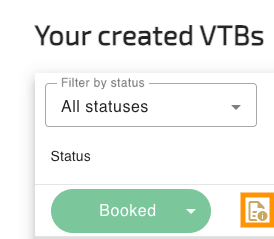
- As soon as you change the VTB status to booked, the proposal is treated as TravelDocs instead of a travel proposal. A TravelDocs icon will appear, indicating that the TravelDocs functionally is active.
Step 1
No action needed for TravelDocs
Step 2
You can adjust and enhance the content that will appear in the TravelDocs. You are free to decide which elements and details you want to adjust in this step.
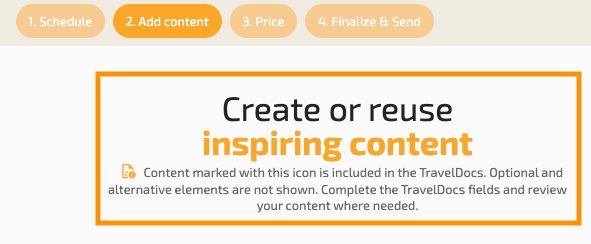
- Included elements will appear in TravelDocs
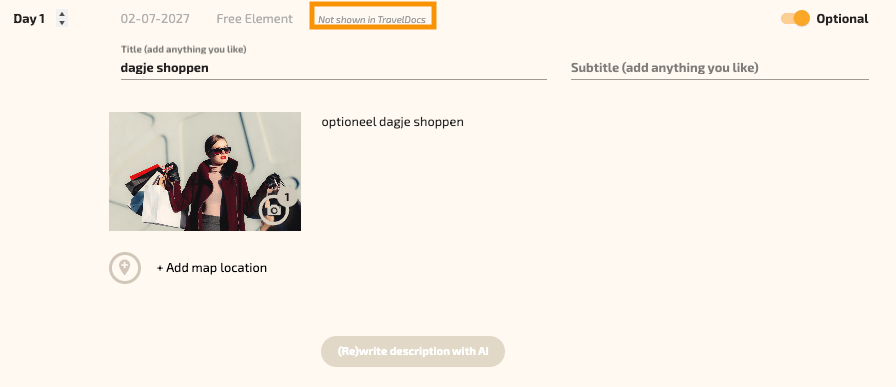
- Optional elements will NOT appear in TravelDocs
Each element will show a TravelDoc icon if it is included or a note indicating it is excluded from TravelDocs.
Example: shown in TravelDocs
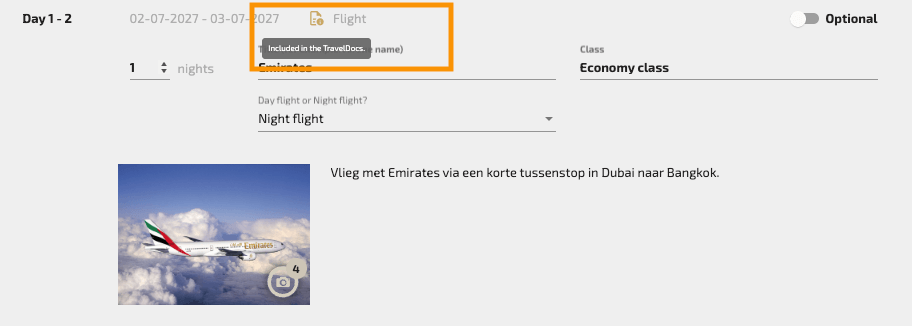
If shown you can add details like address, reference, contact info and practical info.
Note: choose whether to include the element in the voucher document.
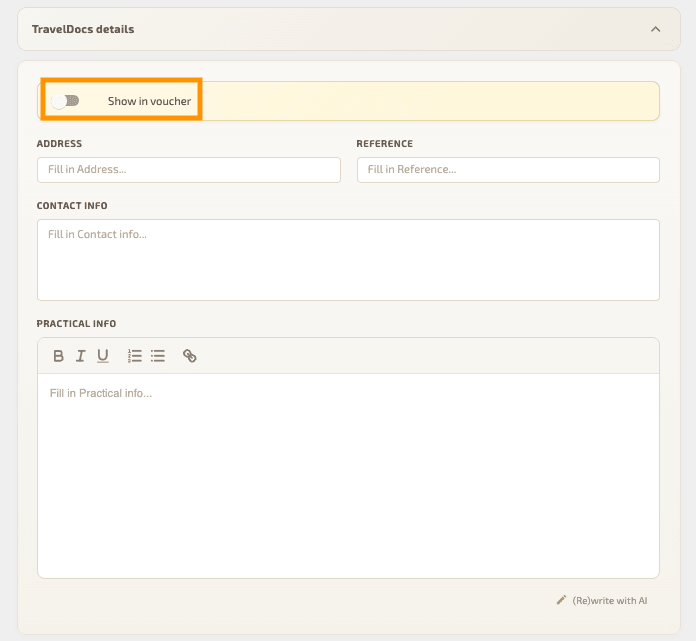
Example: not shown in TravelDocs
Step 3
Pricing information is not shown in TravelDocs. No action is needed in this step.
Step 4
In the final step you adjust where desired and publish or download.
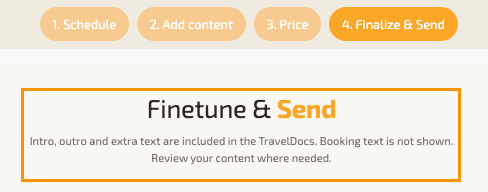
- Edit the intro, outro, and optionally the “extra text”. By using “My Texts“, you can quickly select previously saved content.
- Preview your work, then choose to publish or download.
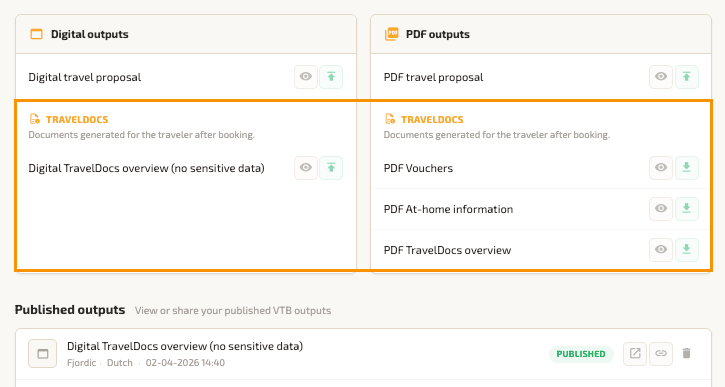
- The Digital Travel Proposal, PDF Travel Proposal, and Digital TravelDocs overview (no sensitive data) can be publised as usual.
Note: The Digital TravelDocs overview (no sensitive data) only includes the “Practical info” from the TravelDocs fields, due to privacy regulations. - The Three TravelDocs PDF variants can only be downloaded, saved locally, and shared manually with the traveler. This is due the privacy regulations. These files will not appear in the “Published outputs” overview after downloading.
Note: to download these files, make sure your popup blocker is disabled for the VTB.